
Last Updated:



Green, Orange and Blue Dots visible on the screen of iPhone and Android phones are not just normal light. These Privacy Indicators tell whether camera, microphone or some other things are being used. Know what these dots mean and when you need to be cautious of any suspicious app.
While using an iPhone or any advanced Android smartphone, you may have noticed that small green, orange and blue dots appear and disappear repeatedly near the status bar or Dynamic Island at the top of the screen. Many people ignore them considering it to be just a display problem or a problem related to network signal. But in reality, these lights are very important ‘Privacy Indicators’, which help in protecting the privacy and security of your phone in a better way.
Apple and Google, two big companies in the world of technology, have introduced this special feature so that no app can steal or access your personal information without your knowledge. Every colored dot visible on the screen has its own special meaning.
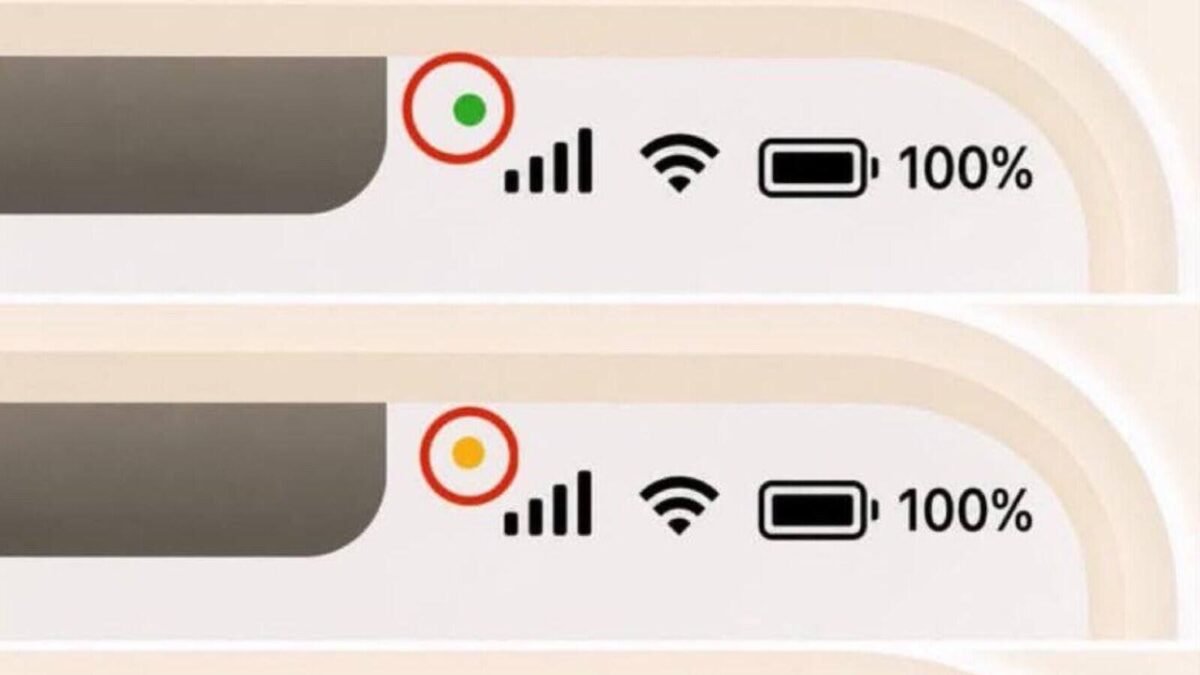
Green light: This means that your phone’s camera is active. This green light appears when you turn on the camera or make a video call on apps like WhatsApp, Instagram, FaceTime. Even if both camera and microphone are being used simultaneously, a green dot is visible on the screen.
Add News18 as
Preferred Source on Google
Orange Light: This orange light indicates that your phone’s microphone (Mic) is currently in use. This orange dot appears on the screen when you make a normal phone call, make a voice recording, or use voice command features like Siri/Google Assistant.
Blue light: This blue indicator appears when features like location services (GPS, voice control or screen sharing/screen mirroring) are active on your phone. This blue dot may also appear when cab or food delivery apps other than Google Maps are tracking your location.
When to be cautious: If you are not using the camera or talking to anyone, yet a green or orange dot is repeatedly visible on the screen, then be cautious. This could mean that an app running in the background is using or monitoring your camera or microphone without your permission. In such a situation, the possibility of any dangerous malware or spyware present in the phone cannot be ruled out.
How to know which app is using it? As soon as these lights appear, open Control Center by swiping down from the top of the screen. Here you will clearly know which app is using your camera or microphone. If you notice any suspicious or unnecessary app using your microphone or camera, immediately go to the phone’s Settings and open the Privacy & Security section. After this, turn off the camera and microphone permissions given to that app or delete that app if it is not needed.