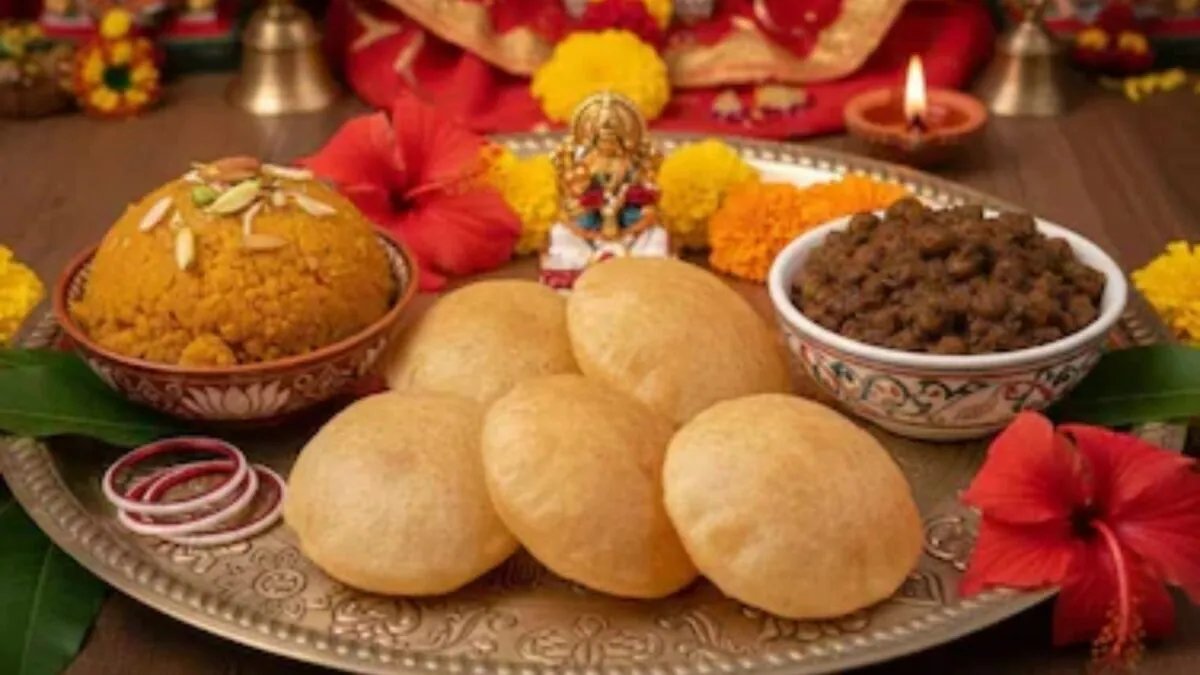
During Durga Puja, the beautiful lighting of pandals, idols of Maa Durga and crowd of people provide an opportunity to take memorable photographs. However, due to low light, different colored LED lights and crowd in the background, sometimes photos taken from smartphones appear dark, blurry or blurred. Now such photos can be improved with the help of Google Gemini, ChatGPT and AI editing tools present in Android phones and iPhones.



For this, one has to upload a photo and give commands in simple language. The AI tool can create an edited photo in just a few seconds. For better results, it is important to clearly tell in the command what is to be changed in the photo and what is to be kept as before.
Know here 7 useful AI commands to improve Durga Puja photos and 3 types of commands which should be avoided.
7 AI commands for Durga Puja Photos
Brighten low light photos
Pictures taken inside the pandal at night often appear dark. In this case use this command:
Command: ‘Brighten this photo taken inside a pandal at night. Reduce noise and keep the warm yellow lighting natural.
This can help in improving the brightness of the picture and reducing digital noise. Besides, instructions are also given to keep the warm yellow light of the pandal natural.
Make face color natural
Due to the white, yellow and colored LED lights in the pandal, the complexion may appear green or purple.
Command: ‘Correct the color cast from LED lights so skin tones look natural, without changing the colors of the decorations.’
This can help improve the facial complexion, while keeping the makeup colors the same.
Remove background crowd from photo
If people are seen walking behind your photo, you can try to remove them with the help of AI.
Command: ‘Remove the people walking behind me and fill the space naturally with the pandal background.’
This command may work best when the people in the background are small and not covering the main part of the photo.
Enhance the colors of traditional clothes
Use this command to make the red-white saree or traditional clothes worn during Durga Puja more attractive in the photo.
Command: ‘Make the red and white of this saree look richer, while keeping the fabric texture and border details sharp.’
This can help bring out the colors of the clothes and maintain the texture and border details.
Crop photos to the right size for Instagram
To create the correct photo frame for an Instagram post, give this command:
Command: ‘Crop this photo to 4:5 for an Instagram post, keeping my face and the idol in the frame.’
A ratio of 4:5 can be used for Instagram posts and 9:16 for Stories or Reels. Specifying this in the command helps in keeping the necessary parts in the frame.
Add a light festive glow to photos
To make the pandal lights look a little more attractive, use this command:
Command: ‘Add a subtle warm glow and gentle Bokeh from the lights in the background, without blurring my face.’
This can help in adding a slight glow and Bokeh effect to the background lights. Using ‘subtle’ in the command can reduce the risk of applying too many filters.
Fix blurry group photo
If the photo taken with friends or family is a bit blurry, then you can try this command.
Command: ‘Sharpen this slightly blurry group photo and improve facial details, keeping everyone’s features unchanged.’
This command will try to improve the sharpness of the photo and facial details. However, in highly blurred images, AI cannot fully restore the original details.
Better to avoid these 3 AI commands
-changing someone’s face or identity
Avoid commands that change another person’s face or make them look completely different. Especially in group photos, sharing photos of other people by altering their faces without their consent can create concerns about their privacy.
-Making changes in the idol of Maa Durga or religious things
AI should be avoided in changing the form of the idol, adding other deities or changing the objects of worship. This may portray the religious aspect in a wrong light and may hurt the sentiments of many people.
-Creating a picture that looks like the real event
If you have not been to any pandal, then do not create a picture with AI showing your presence there and share it as real. Similarly, adding a fake crowd to a photo to make it look like a real scene can be misleading.
Keep in mind before editing photos with AI
- Save the main photo before starting AI editing.
- Command to make one change at a time, making it easier to understand and correct the result.
- Before uploading a photo, read the AI app’s privacy policy and data use rules. Some services may store uploaded photos on their servers.
- Get consent from friends and family before editing and sharing their photos online.
- Use only apps available in India. For example, CapCut is banned in India.
Note that AI results may vary depending on the tool, app version, device, and quality of the original photo. Before sharing a photo, check it carefully to ensure that it does not misrepresent any person, religious statue or actual event.